Last updated: 2026/10/1
Manage team members
This section explains how to manage Team members and their Roles.
Overview of Team Member Management
What are Team members?
- You can invite Team members to a team to manage Social profiles with multiple people.
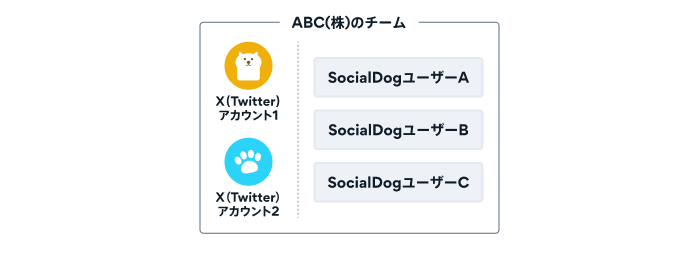
- For example, SocialDog user B and C, who are Team members, can operate an X (Twitter) Account that SocialDog user A from the ABC Corp. team added.
Team member Roles
You can set one of the following three Roles for each Team member.
Owner
- Only one user can be set as the Owner per team. The team creator becomes the Owner at the time of team creation.
Admin
- Can perform most operations.
General User
- Can perform operations other than changing Team settings.
Operations available for each Role
| Operation | Owner | Admin | General User |
| Basic functions (Analytics, Post, Inbox, Followers management) | Available | Available | Available |
| Change Team settings (Add Twitter Account, Invite a user, Edit Roles, etc.) | Available | Available | - |
| Create, Change, or Delete team-shared settings (Alerts, Post tags, etc.) | Available | Available | - |
| Plan / Billing (Change Plan, Payment method, etc.) | Available | Available | - |
| Delete team, Transfer team ownership | Available | - | - |
Invite a user (Add Team members)
- Click the icon in the bottom left of the screen.
- Click Team members.
- Click [Invite a user].
- Select the email address of the invitee and their Team role (Admin or General User).
- Click [Send Invitation].
Operations for the Invited User
Invited users will become Team members with an existing SocialDog Account or a newly created SocialDog Account.
- Open the email from SocialDog.
- Access the link provided in the email.
- Create a SocialDog Account or log in.
- If you don't have a SocialDog Account: Set the Password for the SocialDog Account you are creating.
- If you already have a SocialDog Account: Enter the Password registered with SocialDog.
Change Team member Roles
This operation is only available to the Owner and Admins.
- Click the icon in the bottom left of the screen → Team members.
- Click the user whose Role you want to Change.
- Under "Team role", select either Admin or General User.
Transfer team ownership to another user
You can Transfer team ownership to another Team member due to reasons such as resignation.
This operation is only available to the Owner.
- Click the icon in the bottom left of the screen → Team members.
- Click the Owner user.
- Click "Transfer team ownership".
- Select the user you want to make the Owner.
- Enter your SocialDog Account Password.
- Enter the current Owner's Password, not the Password of the user you want to make the Owner.
- Click "Transfer team ownership" in the bottom right.
- A confirmation dialog will appear. Click [Transfer team ownership].