Using Two-factor authentication
Turning on Two-factor authentication enhances your Account's Security by requiring additional authentication information in addition to your Password when logging in.
Overview of Two-Factor Authentication
By turning on Two-factor authentication, you can enhance your Account's Security.
When you turn on Two-factor authentication, you will need to enter a one-time password when logging in to SocialDog.
One-time passwords can be obtained with your preferred app, such as Google Authenticator.
When logging in with a Google or Apple Account, SocialDog's two-factor authentication is not applied. To enhance Security, please set up two-factor authentication on your Google or Apple Account.
For more information about logging in with a Google or Apple Account, see Log in with a Google Account or Apple Account.
Turn on Two-Factor Authentication
- Open Account settings] → Security].
- Click [Turn on] at the bottom right.
- Enter your SocialDog Account Password and click [Next].
- Install an authenticator app on your smartphone or other device.
- Google Authenticator (iOS, Android)
- Microsoft Authenticator
- Others, apps that can perform two-factor authentication with TOTP (Time-Based One Time Password)
- Scan the QR code with the authenticator app.
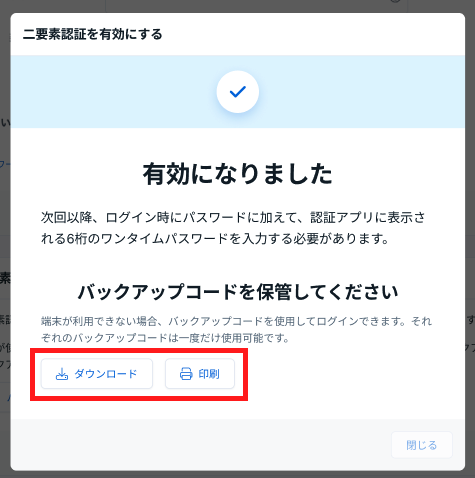
- Enter the 6-digit one-time password displayed in the authenticator app on the screen. →Two-factor authentication will be turned on.
- To store your backup codes, click [Download] or [Print] and store the backup codes in a safe place.
- Mouse over [Cannot scan].
- Manually enter the "Account Name" and "Key" into the authenticator app.
- The Account will be added to the authenticator app, and a 6-digit one-time password will be displayed.
Log in with an Account with Two-Factor Authentication Turned On
Accounts with Two-factor authentication turned on can log in by following the steps below.
- Access the login screen.
- Enter your email address and Password, and click [Log in].
- Enter the 6-digit one-time password displayed in the authenticator app, and click [Authenticate] to log in.
- If you cannot log in with Two-factor authentication, see Cannot log in to SocialDog.
- When logging in with a Google Account or Apple Account, SocialDog's Two-factor authentication is not required.
Disable Two-Factor Authentication
You can Disable Two-factor authentication by following the steps below.
- Open Account settings] → Security].
- Click [Disable] at the bottom right.
- A confirmation screen will be displayed, and clicking [Disable] will Disable Two-factor authentication.