Manage your team's social profiles
This section explains how to add and delete Social profiles.
To manage Social profiles in SocialDog, you need to add Social profiles to your team. Once a Social profile is added to a team, it cannot be added to other teams.
Add Social profiles to your team
- Go to [Social profiles].
- Click [Add Social profile].
- Click the social network you want to add.
- When the social network screen opens, log in and grant data access.
- Your Social profile has been added.
- Clicking the Account name displayed in the top left allows you to switch Accounts.
For detailed steps on connecting each social network, please refer to the following pages.
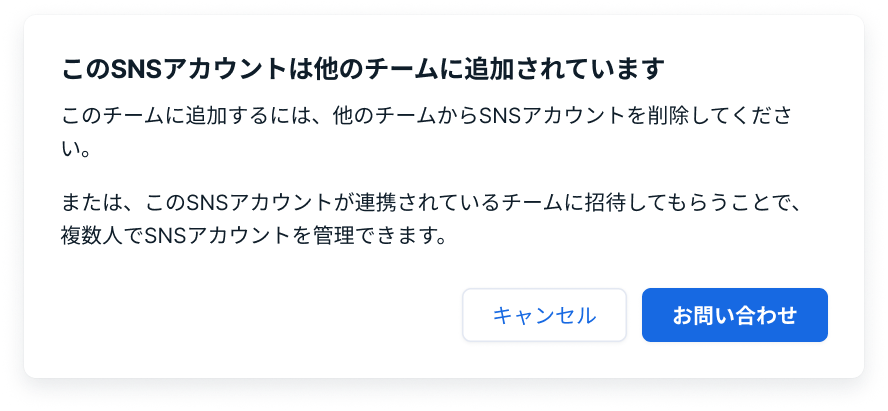
If you see 'This Social profile is already linked to another team'
Social profiles cannot be linked to multiple teams. If you try to add a Social profile that is already added to another team, this message will be displayed.
If you know which team the Social profile is linked to
- If you are logged into SocialDog with another Account, first log out of SocialDog.
- [Login] to SocialDog with the SocialDog Account of the administrator of the team to which the Social profile is linked.
- Delete the Social profile from the team.
- Log out of SocialDog.
- Login with the SocialDog Account to which you want to add the Social profile.
- Follow the steps in Connect your X (Twitter) Account.
If you don't know which team the Social profile is linked to
Please contact support, including the name of the Social profile you wish to link.
Delete Social profiles from your team
- Go to [Social profiles].
- Linked Accounts will be displayed in a list.
- For the Account you want to delete, click [...]→[Delete].
If you add a Social profile again after deleting it, you can still view previously acquired data.
When you Delete a Social profile, the following data will be deleted:
- Posts set in 「Scheduled posts」 (This does not affect Posts that have already been published)
- Drafts
- Keyword Monitor
Change linked Social profiles
- Open the social network you wish to add and log out from it.
- Follow the steps above to Delete the Social profile from the team.
- Follow the steps above to Add the Social profile to the team.
Re-link
Due to Security measures implemented by each social network provider, re-linking may be required. If you do not re-link by the deadline, you will no longer be able to update Analytics data or schedule Posts.
When re-linking is required
- When it is Unlinked
- Even if the user has not Unlinked it, it may be automatically Unlinked.
- When it has not been re-linked for a certain period or longer
- When you Change your Password
If the link is broken, or when the re-linking deadline approaches, you will receive Notifications on the SocialDog screen or by email.
Re-link
- Click the icon in the bottom left→[Social profiles].
- For the Social profile in question, click [...]→[Re-link].
If you Change your Password on the social network side, we recommend re-linking, even if you have not received an Unlink Notification from SocialDog. Immediate re-linking may be necessary when you Change your Password on the social network side.