Link Instagram account
This article explains the steps to link your Instagram account to SocialDog.
Two ways to link your Instagram Account
There are two ways to link your Instagram account. "Log in with Instagram" is easy and recommended.
- Log in with Instagram (recommended)
- Log in with Facebook
Differences between the two methods
| Log in with Instagram | Log in with Facebook | |
| Ease of setup | Easy (recommended) | Complex |
| Account used for linking | Instagram Account | Facebook Account |
| Facebook Page / Facebook Account | Not required | Required |
Link your Instagram Account
- Click the icon in the bottom left corner → Social profile.
- Click [Add Social profile].
- The screen for selecting the Social profile to add will appear. Click [Instagram Account].
- On the screen to select the linking method, choose [Log in with Instagram] or [Log in with Facebook].
- If prompted to switch to a professional account after logging in, follow the on-screen instructions to switch to a professional account.
- Log in to Instagram.
- You can log in with your Instagram Password or Facebook Account.
Preparation for "Log in with Facebook"
This section explains the necessary steps before linking your Instagram account using "Log in with Facebook". If you are linking your Instagram account using "Log in with Instagram", this step is not required.
Requirements for "Log in with Facebook"
To link your Instagram account with "Log in with Facebook", you must meet all the following requirements:
- Have a Facebook Account
- If you don't have a Facebook Account, you can create one on the official Facebook website.
- Have a public Facebook Page
- Even if you do not link a Facebook Page to SocialDog, a Facebook Page is required when linking your Instagram account via "Log in with Facebook".
- If you don't have a Facebook Page, you can create one on the official Facebook website.
- Your Instagram Account must be a professional account
- Your Instagram Account must be linked to a Facebook Page
- You can link one Instagram Account to one Facebook Page.
- You cannot link to a Facebook Page that is already linked to an Instagram Account.
- You can link one Instagram Account to one Facebook Page.
- Have permissions for the Facebook Page
- Required permissions
- For classic pages
- "Admin" or "Editor"
- For new design pages
- One of the following:
- Full control Facebook access
- Partial control Facebook access
- One of the following:
- For classic pages
- For more details on Facebook Page permissions, please refer to the official Facebook Help.
- Required permissions
How to change your Instagram Account to a professional account and link it to a Facebook Page
This section explains the method for users with a "new design" Facebook Page. The steps may differ for "classic pages".
If you cannot set up following the steps below, please refer to the official Help as well.
For smartphone app
You can switch to a business account and link to a Facebook Page simultaneously using the Instagram app.
- Open the Instagram app on your smartphone. Also, log in to the Instagram Account you want to link to SocialDog.
- Open the "Profile" tab (the tab showing your user icon or profile picture) at the bottom of the screen.
- Tap "More" (the three-line icon) at the top of the screen.
- Click "Account type and tools" within the "Professional dashboard" section.
- If "Account type and tools" is not displayed, please check "If 'Account type and tools' is not displayed" at the bottom.
- Tap "Switch to professional account".
- A description of the professional account will be displayed. Tap "Next" until the "Select a category that best describes you" screen appears.
- The "Select a category that best describes you" screen will appear. Select the appropriate category for your Instagram Account and tap "Next".
- The "Are you a Creator?" screen will appear. Select the appropriate option and tap "Next".
- The "Review your contact info" screen will appear. Review and Change the displayed content, then tap "Next" or "Don't use my contact info".
- The "Share login using Accounts Center" screen will appear. Tap "Next".
- Follow the on-screen instructions to log in with your Facebook Account and Add the Account. ※ The displayed screens may vary depending on the situation, such as if you have already enabled the setting to log in to your Instagram Account with your Facebook Account (Connected Experiences).
- Tapping "Next" will display the "Link your Facebook Page" screen. Select the Facebook Page you want to link with your Instagram Account and tap "Next". ※ If you do not have a Facebook Page, you can create one on this screen.
- Once the "Set up your professional account" screen is displayed, this task is complete. Tap "Close" (the X icon) at the top of the screen.
- If "Business tools and controls" is displayed in the "Professional dashboard" section:
- Your Instagram Account is already a business account. Please check "Confirm if your Instagram Account is linked to a Facebook Page".
- If "Creator tools and controls" is displayed in the "Professional dashboard" section:
- Your Instagram Account is a creator account. Please check "Confirm if your Instagram Account is linked to a Facebook Page".
For computer browser
This section explains the method for users with a "new design" Facebook Page. The steps may differ for "classic pages".
Step 1: Switch your Instagram Account to a professional account
- Open the official Instagram website and log in with your Instagram Account.
- Click "More" (the three-line icon), then click "Settings" in the menu that appears.
- Click "Switch to professional account".
- The "Select the account type that best suits you" screen will appear. Select the appropriate option and click "Next".
- A description of the selected account will be displayed. Click "Next".
- The "Select a category" screen will appear. Select the appropriate category for your Instagram Account and click "Done".
- The "Confirm contact info" screen will appear. Review and Change the displayed content, then click "Save" or "Don't use contact info".
- The "Your Instagram business account is ready" screen will appear. Click "Done".
Step 2: Link your Instagram Account and Facebook Page
- Open the official Facebook website and log in with the Facebook Account that manages the Facebook Page you want to link with your Instagram Account.
- Click "Pages" in the menu on the left side of the screen. If "Pages" is not displayed, click "See More" to reveal it.
- A list of the Facebook Pages you manage will be displayed. If you do not have a Facebook Page, please create one on this screen first.
- Find the Facebook Page you want to link with your Instagram Account in the list of Facebook Pages. Click the "..." icon displayed on this Facebook Page, then click "Switch".
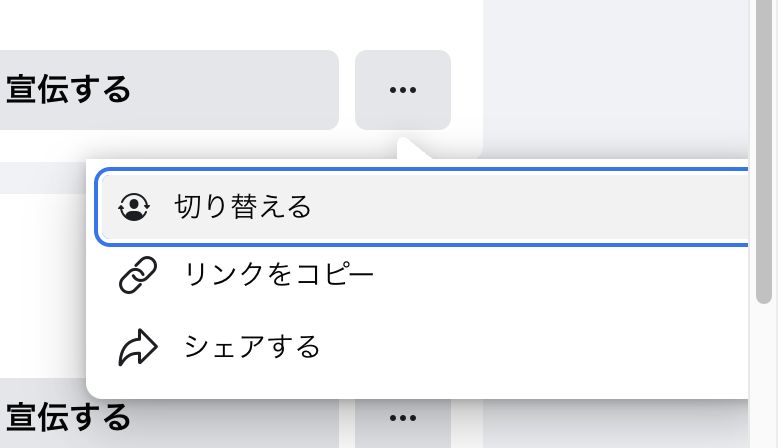
- The Facebook Page will be displayed. Click "Settings" in the menu on the left side of the screen.
- The "Settings" screen will appear. Click "Linked Accounts" in the menu on the left side of the screen.
- The "Linked Accounts" screen will appear. Click "Instagram" in the menu on the left side of the screen.
- Click "Connect Account".
- A description screen about the link will be displayed. Click "Connect".
- The "Choose Instagram message settings" screen will appear. Optionally Change the settings and click "Done".
- The Instagram login screen will appear. Log in with the Instagram Account you plan to link to SocialDog.
- Once the "Instagram connected" screen is displayed, this task is complete.
Confirm if your Instagram Account is linked to a Facebook Page
You can confirm if your Instagram Account is linked to a Facebook Page using the following method:
- Open the Instagram app on your smartphone and log in to the Instagram Account you want to link.
- Open the "Profile" tab (the tab showing your user icon or profile picture) at the bottom of the screen.
- Tap "Edit Profile".
- Tap "Page" within the "Public business information" section.
- If a Facebook Page is already linked, its information will be displayed. If no Facebook Page is linked, you can link one.
Instagram Account or Facebook Page you want to Add is not displayed in SocialDog
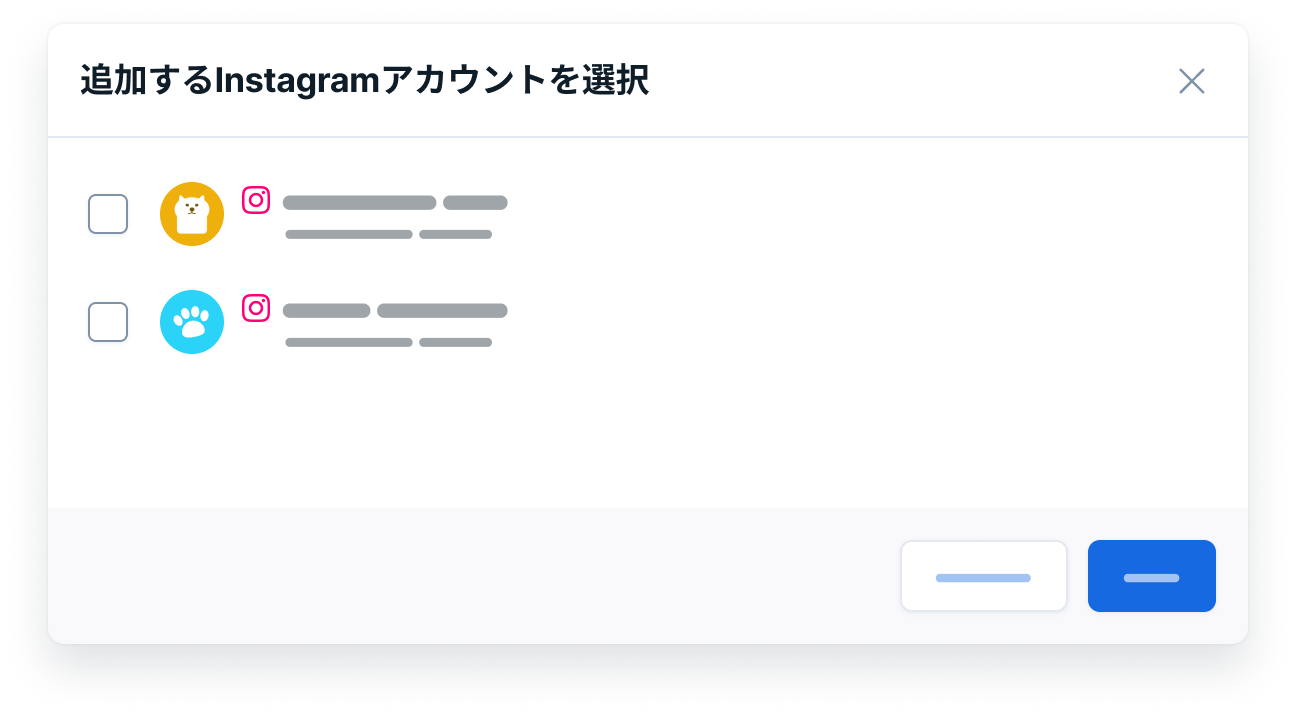
If the Instagram Account or Facebook Page you want to Add is not displayed on the "Select Instagram Account to Add" or "Select Facebook Page to Add" screen when trying to Add it to SocialDog, please check the following:
- If logging in with Facebook
- Have you met the requirements for logging in with Facebook?
- Is business integration On?
Please check the Facebook settings by following these steps:
- Open Facebook's "Business integrations" settings.
- This is a Facebook settings screen, not Instagram.
- Click "View and Edit" in the "SocialDog" row.
- On the screen that appears, turn all toggle switches On.
- If a list of Instagram Accounts and Facebook Pages is displayed for each toggle switch, please check all Instagram Accounts and Facebook Pages you want to manage with SocialDog.
- Click "Save".
- Please try to Add a Social profile in SocialDog again.
- Open Facebook's "Business integrations" settings.