Last updated: 2026/6/29
View and schedule posts in the Calendar
You can view, create, and edit your Scheduled posts on the Calendar.
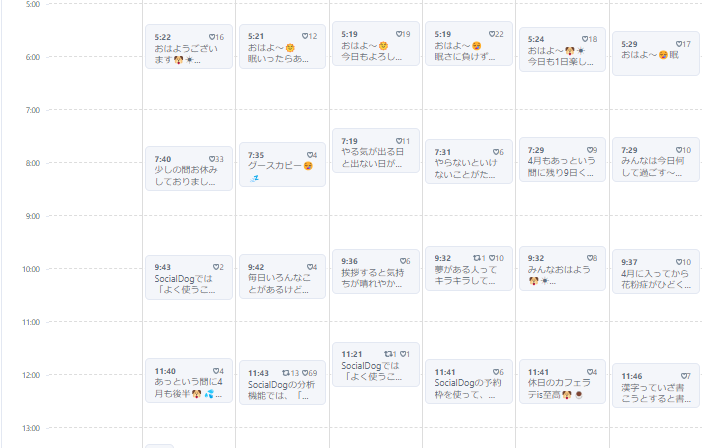
View Scheduled posts on the Calendar
- From the menu, click [Post] -> [Calendar].
- Already posted content is displayed with a gray background, and Scheduled posts are displayed with a blue background.
Filter posts displayed on the Calendar
- If you want to view only posts from a specific Social profile, click the Social profile you want to display.
- Hover over a Social profile and click the checkbox to filter by multiple Social profiles (PC version only).
Schedule Posts from the Calendar
- From the menu, click [Post] -> [Calendar].
- Click a blank Time of day on the Calendar. The creation screen for Scheduled posts will open. For details on how to create Scheduled posts, refer to Set post content.
- If Posting times are set, they will be displayed at that Time of day. Clicking a Posting time allows you to Add posts to that Posting time. For details on Posting times, refer to Post at pre-set days and times (Posting times).