Filter users
You can use filters to narrow down the users and posts to display.
Here's how you can use them
- Display only users with many/few Followers
- Display only users with a Follower/Following ratio close to 1
- Exclude users you have Followed in the past
- Exclude users who make ad/promotional posts
- Exclude users who make adult posts
Using Quick filters
You can narrow down results using predefined filters. You can also save frequently used conditions as quick filters.
- From the menu, click Inbox, Followers, or Post engagement.
- Click [Filter] in the upper right corner of the screen.
- Check the desired items.
Using Advanced filters
Advanced filters are available with Personal, Professional, Business, and Enterprise plans.
If you want to set conditions freely, use "Advanced filters."
- From the menu, click Inbox, Followers, or Post engagement.
- Click [Filter] in the upper right corner of the screen.
- Click [Advanced filter].
- Click [Add filter].
- Select the filter item you want to add.
- You can set multiple filters.
- Enter the filter conditions.
- Once you have finished entering the filter, click [Apply].
Check the number of users after applying filters
When you apply a filter using the "Followers" feature, you can check the number of users after applying the filter and before applying the filter at the top of the screen.
It is displayed in the format: Number of users after filter application / Number of users before filter application.
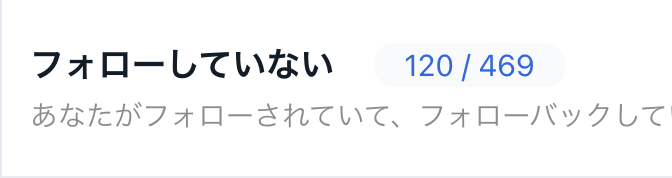
If you have 30,000 or more Followers, the user count will not be displayed. For details, please refer to Features unavailable for X (Twitter) Accounts with a large number of Followers | Connecting your X (Twitter) Account.
Saving Frequently Used Filters as Quick filters
Frequently used filters can be saved as quick filters.
Saved quick filters can be called up with one click from the quick filter screen.
- Set "Advanced filter."
- Click "Save this filter."
- Name the filter you want to Save.
- It will be saved as a quick filter.
- Saved quick filters can be called up immediately from the quick filter screen.
Deleting Saved Quick filters
- From the menu, click Inbox, Followers, or Post engagement.
- Click [Filter] in the upper right corner of the screen.
- Click the "x" displayed to the right of the registered quick filter.
- Confirm the message and click [Delete].
Use Cases
Here are some examples of how to use filters.
Only quick filters are available in the SocialDog app.
If you want to draw lots for Contests
Utilize AI-powered automatic account classification filters
You can exclude "Bot accounts," "Adult accounts," "Ad/Promotional accounts," and more.
Items marked with "(beta)" are automatically determined and estimated by AI using SocialDog's unique algorithms trained on AI. This is an automated machine determination, and the results may be incorrect.
Exclude users containing specific text
To exclude users whose name, description, or location contains specific keywords, set the following filters:
- All text [does not contain]
If you want to increase your Followers
Follow users who are likely to Follow back
By setting filters like the following, you can Follow only those who are likely to Follow back.
- Follower/Following ratio more than: 0.7
- Follower/Following ratio less than: 2
- Inactive: No
- Following: No
- Pending follow request: No
- Following count more than: 100
- Post count more than: 100
- Date followed: Not recorded
Users who actively Follow back after being Followed will have their Following count closer to their Followers count.
Also, there is no point in Following Inactive people, so exclude them.
Exclude those who seem new to X (Twitter) with fewer than 100 Following or 100 Posts.
Exclude those you have Followed before.
If you want to increase your Follower/Following ratio
Unfollow users other than recently Followed ones (Non-followers, Inactive)
To keep your Following users clean, it is effective to unfollow users who have not Followed back or are Inactive.
You can unfollow using the following features:
- "Followers" → "Non-followers"
- "Followers" → "Inactive"
Users you recently Followed may still Follow back. We recommend unfollowing older ones by setting the sort order to "Oldest first" by date followed, or by creating a filter like the following to avoid unfollowing users Followed within the last week.
X (Twitter) rules prohibit mass unfollowing (known as "Follow churn") simply because a Follow was not returned after Following.
With the settings below, only users Followed before December 16, 2016, will be displayed.
- Date followed before : December 16, 2016
Also, among Inactive users, those with many Followers may become Active again, so you can also apply a filter like the following:
- Followers count less than: 1000
Exclude Bot Accounts
The "Bot (beta)" filter allows you to specify whether to include or exclude bot accounts.
- Items marked with "(beta)" are automatically determined and estimated by AI using SocialDog's unique algorithms trained on AI. This is an automated machine determination, and the results may be incorrect.
Exclude Adult Accounts
The "Adult" filter allows you to specify the filter strength (how many adult posts there are).
List of Items Settable with Advanced filters
| Filter Name | Description |
| All text | Usernames (starting with @), names, descriptions, and locations. |
| Username | Names starting with @ (@ is not required). Multiple can be specified with commas (,). |
| Display Name | This is not the username (name starting with @). Multiple can be specified with commas (,). |
| Description | Profile description |
| Location | Profile location |
| URL | Profile URL |
| Following Count | The number of users a user is Following. |
| Followers Count | The number of users a user is Followed by. |
| Follower/Following ratio | Follower/Following ratio (Followers count ÷ Following count). A higher FF ratio means more Followers. A ratio closer to 1 indicates a higher likelihood of Following back. |
| Post Count | The number of posts by the user. |
| List Count | The number of lists a user is added to. |
| Likes Count | The number of Likes the user has made so far. |
| Following | Whether you are Following the user. |
| Followed by you | Whether you are Followed by the user. |
| In Keep list | Whether the user is in SocialDog's Keep list. |
| Pending follow request | Whether a follow request is pending. |
| Date followed | Date Followed. If "empty", it means "never Followed before". If "not empty", it means "Followed before". |
| Date followed by | Date Followed by. If "empty", it means "never Followed by before". If "not empty", it means "Followed by before". |
| Blocking | Whether you are blocking the user. It takes a little time to get a list of blocked users. |
| Muting | Whether you are muting the user. It takes a little time to get a list of muted users. |
| Source of Follow | Which SocialDog feature was used to Follow. |
| Source of Unfollow | Which SocialDog feature was used to unfollow. |
| Private | Whether the account is private (also called a locked account). |
| Verified | Whether the account is verified (has a checkmark). |
| Inactive | Whether the account is Inactive (has not posted for 30 days or more). The number of Inactive days can be changed in settings |
| Default image | Whether the user's icon is still the default image. |
| Date joined X (Twitter) | The date the user registered on X (Twitter). |
| X (Twitter) User ID (numeric) | The internal numeric ID for X (Twitter). |
| Bot (beta) | Whether the user is determined to be highly likely to be a bot by analyzing their posts using a unique algorithm. |
| Adult posts (beta) | Whether the user is determined to have many adult posts by analyzing their posts using a unique algorithm. |
| Ad/Promotional posts (beta) | Whether the user is determined to have many ad or promotional posts by analyzing their posts using a unique algorithm. |
These are automatically determined and estimated by AI using SocialDog's unique algorithms trained on AI. This is an automated machine determination, and the results may be incorrect.
The "Gender," "Age," and "Location" items were discontinued on May 20, 2024.
- Data prior to SocialDog registration is not acquired.
- If you Follow and unfollow multiple times, the filter will apply to the date of all Follow and unfollow actions.