Last updated: 2026/5/29

Collect posts containing keywords (Keyword Monitor)

Supported Social Platforms
X (Twitter)
Supported Plans
ProfessionalBusinessEnterprise

The Keyword Monitor allows you to collect posts containing predefined keywords.

You can comment on, repost/quote post, or like the acquired posts.

Keyword Monitor Overview

Use Cases

It can be utilized in scenarios such as:

  • Brand Monitoring and Social Listening
    • Set your company name or product names.
  • Hashtag Campaign Management
    • Set hashtags required for campaign participation.
  • Social Selling and Target Audience Selection
    • Set your own products, product names, store names, or category names of your merchandise.

Acquirable Posts

Posts from all public X (formerly Twitter) accounts within the past 30 days.

tip

The Keyword Monitor utilizes the Full Archive Search feature of the X (formerly Twitter) Enterprise API.

Posts can be acquired within the acquisition limit set for each plan. Therefore, in cases where a large number of posts are made, such as during campaign postings, it may not be possible to acquire all posts.

The Enterprise plan allows you to acquire up to 50,000 posts per month. This can also be used for managing campaigns that require users to post with specific hashtags.

tip

This feature does not support acquiring posts from social media platforms other than X (formerly Twitter) (e.g., Instagram).

Plan-Specific Limitations

The number of posts that can be collected in a single acquisition is 500 posts, and the maximum acquisition limits for the past 30 days are as follows:

  • Enterprise Plan: 100 acquisitions (500 posts × 100 acquisitions = up to 50,000 posts collectible)
  • Business Plan: 30 acquisitions (500 posts × 30 acquisitions = up to 15,000 posts collectible)
  • Professional Plan: 10 acquisitions (500 posts × 10 acquisitions = up to 5,000 posts collectible)

Data Retention Period

Data collected by the Keyword Monitor is retained for 2-3 months and is periodically deleted.

If you wish to save the data, you can do so by utilizing the CSV download feature.

Usage Workflow

  1. Create a Keyword Monitor.
    1. Set the search criteria at this stage.
  2. Fetch the latest posts.
  3. Check the posts collected by the Keyword Monitor in your "Inbox."

Adding keywords alone does not collect posts. To collect posts, you must manually fetch them after setting up the keywords.

tip

If you require automated acquisition or notifications for the Keyword Monitor, please contact us.

Setting Up a Keyword Monitor

  1. Click on Inbox from the menu.
  2. Click on Keyword Monitor Settings.
  3. Click on [Add].
  4. Click on [] next to New Keyword Monitor and enter a title.
  5. Enter the desired keywords in the "Keywords" field.
  6. (Optional) Set conditions using search options.
  7. Click [Add] to complete the setup.

How to Configure Keyword Monitor Search Criteria

Tips for Adding Keywords

Narrowing down keywords as much as possible makes it easier to display posts of interest.

  • Set proper nouns such as your own product name, brand name, or store name, rather than general nouns.
  • Set multiple keywords, for example, "diet breakfast".
  • Utilize search operators.

Keywords Field

  • Entering multiple keywords separated by spaces results in an AND condition.
    • If you enter "#diet breakfast", you can acquire posts containing both "#diet" and "breakfast".
  • You can use "Search Operators for Keyword Monitor".
    • If you enter "#diet OR breakfast", you can acquire posts containing either "#diet" or "breakfast".

Search Options

Operators cannot be used in search options.

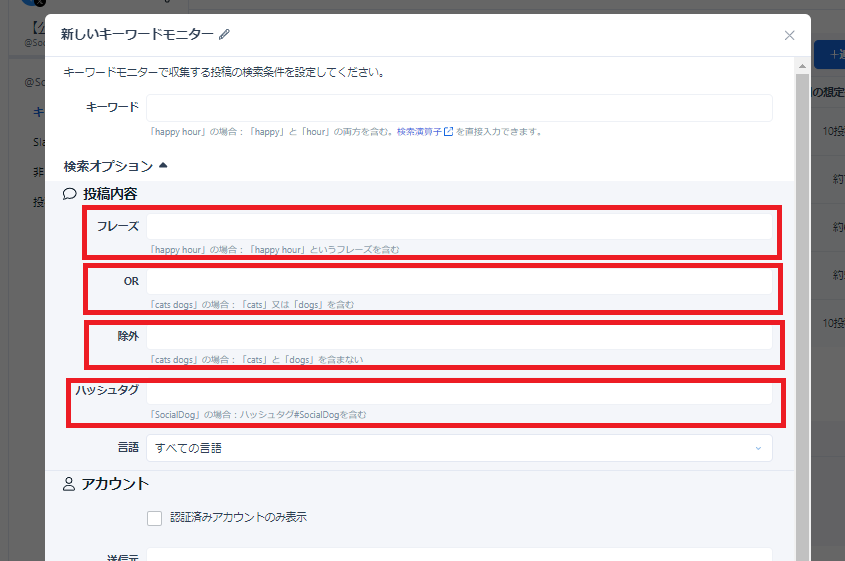
Post Content

FireShot Capture 569 - キーワードモニター - SocialDog - web-social-dog-net-png

  • Phrase: Only one phrase can be registered. Example: For "happy hour", posts containing the phrase "happy hour" can be acquired.
  • OR: Multiple keywords can be registered with an OR condition. Example: For "cats dogs", posts containing either "cats" or "dogs" can be acquired.
  • Exclude: Multiple keywords can be registered with an OR condition. Example: For "cats dogs", posts containing either "cats" or "dogs" will be excluded.
  • Hashtags: Multiple keywords can be registered with an OR condition. Entering "#" is not required. Example: For "SocialDog ソーシャルドッグ", posts containing either "#SocialDog" or "#ソーシャルドッグ" can be acquired.

Accounts

  • From: Multiple accounts can be registered with an OR condition.
  • To: Multiple accounts can be registered with an OR condition.
  • Mentions: Multiple accounts can be registered with an OR condition. Entering "@" is not required.

Editing a Keyword Monitor (Changing Search Criteria)

You can change the name or search criteria of a Keyword Monitor. The updated search criteria will be applied to newly acquired posts.

  1. Click on Inbox from the menu.
  2. Click on Keyword Monitor Settings.
  3. Click [Edit] for the target Keyword Monitor.
  4. Edit the desired fields and click [Change] at the bottom right.
tip

After changing the Keyword Monitor settings, existing acquired data will remain displayed as is.

If you wish to change search criteria for posts from periods already acquired, please create a new Keyword Monitor.

Fetching Latest Posts with the Keyword Monitor

The Keyword Monitor does not automatically fetch posts. You can fetch posts at any desired time.

Please set the "Acquisition Count" to a value that sufficiently covers the posts you wish to acquire.

Only posts newer than the most recently acquired posts will be fetched, meaning posts that were not acquired previously cannot be acquired with the same Keyword Monitor.

For example, if you fetch the latest 1,000 posts (consuming 2 acquisition counts), but there were actually 1,500 relevant posts, only the latest 1,000 posts will be acquired, and the remaining 500 will not. Subsequently, when you fetch the latest posts, only posts newer than those already acquired will be fetched, and the remaining 500 posts will still not be acquired.

  1. Click on Inbox from the menu.
  2. Click on the added keyword in the menu.
  3. Click [Fetch Latest Posts] at the top of the screen.
  4. Select the [Number of Posts to Fetch] from the dropdown, then click [Fetch Latest Posts] at the bottom right.
    1. You can choose the acquisition count based on the number of posts you wish to collect.
  5. Posts for the added keyword will be collected.

Deleting a Keyword Monitor

You can delete Keyword Monitors that are no longer needed.

  1. Click [Inbox] → Keyword Monitor Settings from the menu.
  2. Click the [Delete] button for the keyword you wish to remove.
  3. Confirm the message and click [OK].
tip

The acquired post count will not decrease even if you delete a Keyword Monitor.

Viewing Posts Collected by the Keyword Monitor

  1. Open [Inbox] from the menu.
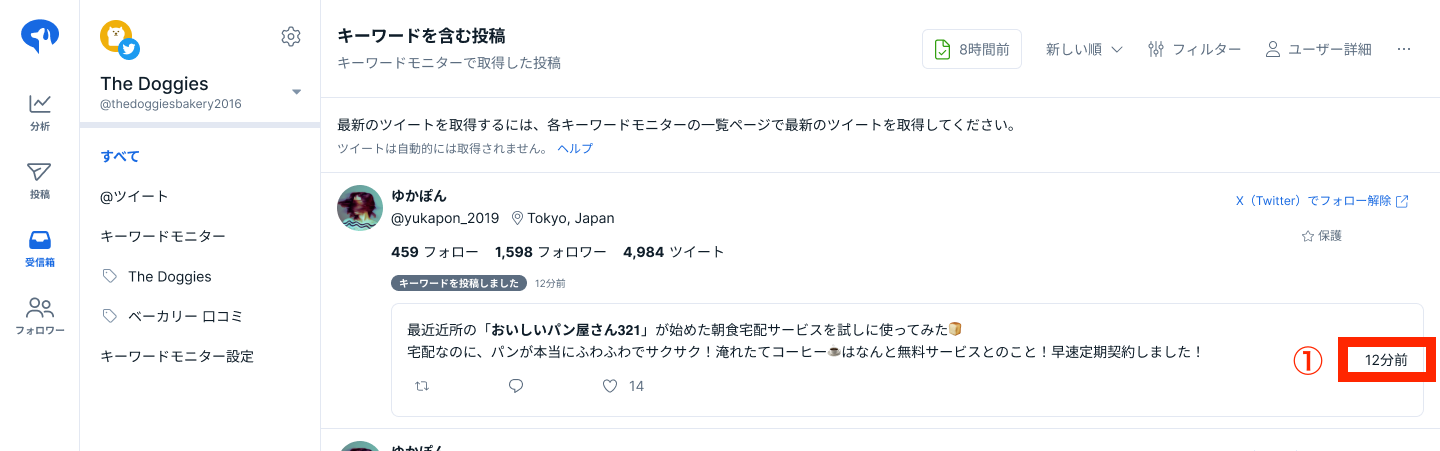
  2. The collected posts will be displayed.
    1. The Repost and Like counts shown are the values at the time the data was acquired.
      1. For details, please refer to Data Acquired from SNS and Acquisition Timing.
    2. Clicking on "Post Time" in the ① red box will navigate you to the X (formerly Twitter) screen of the corresponding post.
tip

Acquired posts can be filtered, sorted, and more. You can also hide or protect acquired users.

For details, please refer to Filtering Users by Criteria.

Plan-Specific Limits

30-Day Acquisition Count

The number of possible acquisitions (Note 2) within the most recent 30 days (Note 1) varies by plan.

  • Enterprise Plan: 100 acquisitions
    • 500 posts × 100 acquisitions = up to 50,000 posts
  • Business Plan: 30 acquisitions
    • 500 posts × 30 acquisitions = up to 15,000 posts
  • Professional Plan: 10 acquisitions
    • 500 posts × 10 acquisitions = up to 5,000 posts
Note 1: Regarding "Most Recent 30 Days"

Please note that this is not the count from the beginning to the end of the month.

Example: If the current time is "2023/6/15 15:00", the remaining acquisition count at that time is calculated based on the acquisitions from "2023/5/16 15:00 to 2023/6/15 15:00".

Note 2: Regarding Acquisition Count Calculation Method

The number of acquisitions consumed is determined by the actual number of posts acquired.

Example:

  • An acquisition was performed for "1,500 posts (consuming 3 acquisition counts)".
  • The actual acquired data result was "700 posts". → The number of acquisition counts consumed will be "2". Acquisition counts for unacquired portions are not consumed.