Run contests by uploading a CSV to register contestants
If you want to run Contests with complex entry requirements (e.g., Hashtags Posts, combinations of multiple conditions), the "Upload CSV to register applicants" type of Contest, which allows you to collectively register applicants via CSV, is convenient.
What you can do with this Contest
- You can manually Add applicants by uploading an applicant list as a CSV file.
- You can create the applicant list in SocialDog.
- You can flexibly design entry requirements, as you can Edit the CSV file using tools like Excel to determine if applicants meet the conditions.
- Data created with external tools can also be used.
Examples of Supported Entry Requirements
For example, you can run Contests such as:
- Hashtags Contests
- Post specified Hashtags
- Follow to enter
- Collaboration Contests
- Follow multiple Accounts
- Reposts to specified Posts
- Contest Contests
- Posts with specified Hashtags or Keywords
- Follow multiple Accounts
How to Proceed
Before the Contest Starts
- (Optional) Set up Keyword Monitor
- If Posts containing Hashtags or keywords are entry requirements, create a Keyword Monitor to collect the necessary Posts for application. For details, please see Collect Posts Containing Keywords (Keyword Monitor).
After the Contest Ends
- Create an "Upload CSV to register applicants" type of Contest (you can create it at any time)
- After the application period ends, create an applicant list (CSV file)
- Extract users who meet the entry requirements and create a CSV file with one X (Twitter) username per line for each applicant.
- Import the CSV file to register applicants
- Draw lots / Adjust winners
- Send DMs to winners
Create an "Upload CSV to register applicants" type of Contest
- From the menu, click Contests.
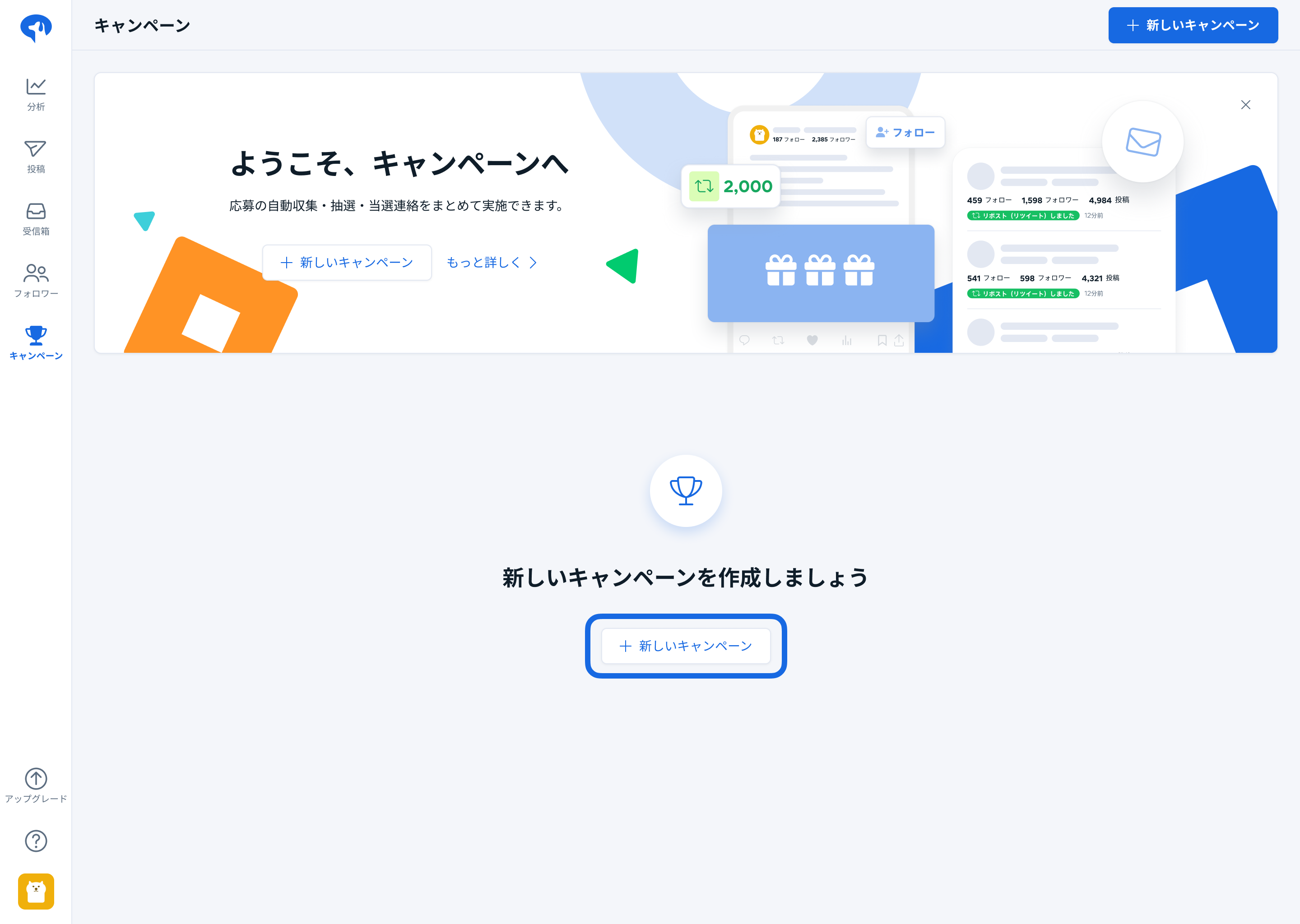
- Click [New Contest].
- Click [Upload CSV to register applicants].
- Enter the following information:
- Contest Name: This is the name for internal management in SocialDog (not displayed to participants).
- Application Period: Collects users who Reposts within the set period as applicants.
- Social profile running the Contest: Used as the sender when sending DMs.
- Click [Create Contest].
Prepare CSV file for importing applicants
First, download user data that meets the conditions in a CSV file. The location to download the CSV file varies depending on the entry requirements.
Next, refine or combine the contents of the CSV file to create an applicant CSV file that meets the entry requirements.
Download CSV files of Posts/users containing Hashtags/keywords
- You can use the "Keyword Monitor" feature to collect relevant Hashtags and download applicant information in a CSV file.
- You can filter by information included in the acquired CSV file (Post content, Post date/time, number of Followers, etc.).
For details, please see Collect Posts Containing Keywords (Keyword Monitor).
Download CSV files of users who Liked, Reposts, or quoted Reposts the target Post
- With the "Post engagement" feature, you can get a list of users who Liked, Reposts, or quoted Reposts a specific Post.
- You can filter by information included in the acquired CSV file (quoted Reposts content, Post date/time, date/time Followed, number of Followers, etc.).
For details, please see Check and React to Users who Reacted to Posts.
Download CSV files of users who Followed the target Account
- You can download a list of Following/Followers for Accounts Linked to SocialDog as a CSV file.
- You can filter by information included in the acquired CSV file (date/time Followed, number of Followers, etc.).
For details, please see Manage Followers.
CSV files downloadable from SocialDog's "Inbox", "Followers", and "Post engagement" can sometimes be used as applicant lists without modification.
It is smoother to extract only Posts within the application period using a spreadsheet (Excel, Google Sheets, etc.) and then consolidate them into a CSV file.
Create a CSV file containing only users who meet all entry requirements
Integrate data for each entry requirement into a single file, exclude users who do not meet all entry requirements, and create the final list of applicants.
CSV File Format
- One user per line.
- The CSV file should only contain usernames. Including or not including
@at the beginning is acceptable. - The text encoding format should be Shift-JIS or UTF-8.
Import applicants using a CSV file
- On the Contest applicant list screen, click [Import CSV file].
- Follow the on-screen instructions to select the CSV file for import.
- Click [Import CSV file].
If you import a CSV file while applicants are already registered, existing "applicants" will be Deleteed. The contents of the "winners" and "candidate winners" lists will not be Updated.
Up to 10,000 users can be imported at a time.