Last updated: 2026/5/29
Analyze User-Generated Content (UGC)
「Conversation trends」(formerly "trends in the number of posts")allows you to check the trends in the number of X (Twitter) posts (conversations) containing specific keywords.
What you can do with Conversation trends
- You can check the trends in the number of posts containing specified keywords by hour, day, week, or month.
- You can specify the date range to check trends, and view trends in the number of posts from more than one year ago.
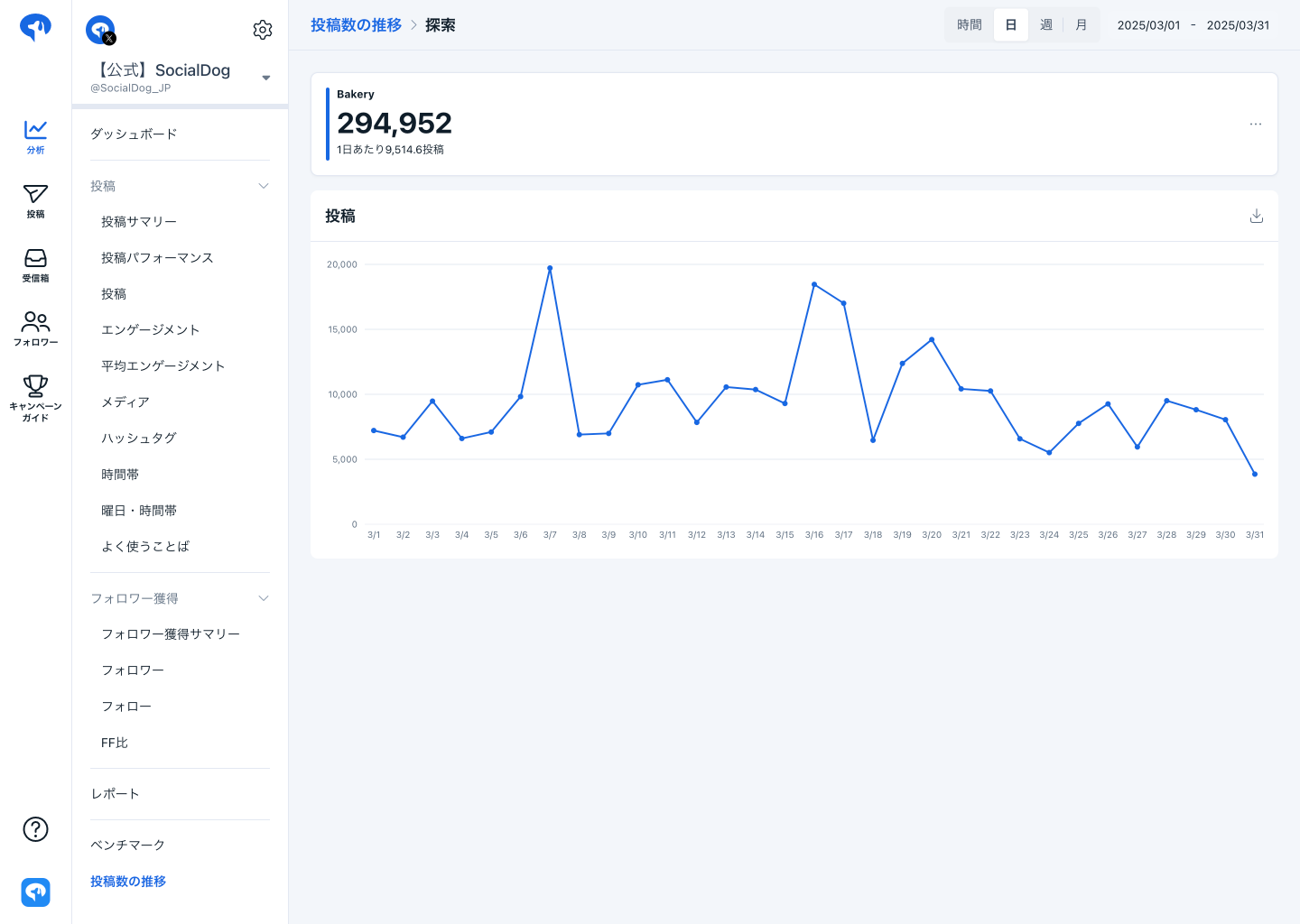
- You can download time-series data as a CSV file.
- You can specify the period for data acquisition and the display unit (month, week, day).
- For the period, you can select a date range from March 21, 2006 onwards.
- For the display unit (month, week, day), you can select "Hour," "Day," "Week," or "Month." The average number of posts will be displayed based on the selected display unit (month, week, day).
tip
You can specify Hashtags as keywords, so you can also retrieve the trends in the number of Hashtag posts.
Checking trends in the number of posts
- Click [Analytics] → [Conversation trends].
- Search by the keyword for which you want to check the trends in the number of posts. A graph showing the trends in the number of posts for the entered keyword will be displayed.
Searching for Posts on X (Twitter)
While the posted content cannot be viewed on SocialDog, you can open the X (Twitter) search screen with the entered keyword.
- Click [Analytics] → [Conversation trends].
- Search by the keyword for which you want to check the trends in the number of posts.
- Click the [...] button on the far right of the box displaying the keyword and the number of posts.
- Click [Search on X (Twitter)]. A search screen will open with the [since:] and [until:] operators added to the entered keyword.